
The planes over your home, live.
Flyover takes about five minutes to set up. All you need is your phone and your Wi-Fi password.
Set it up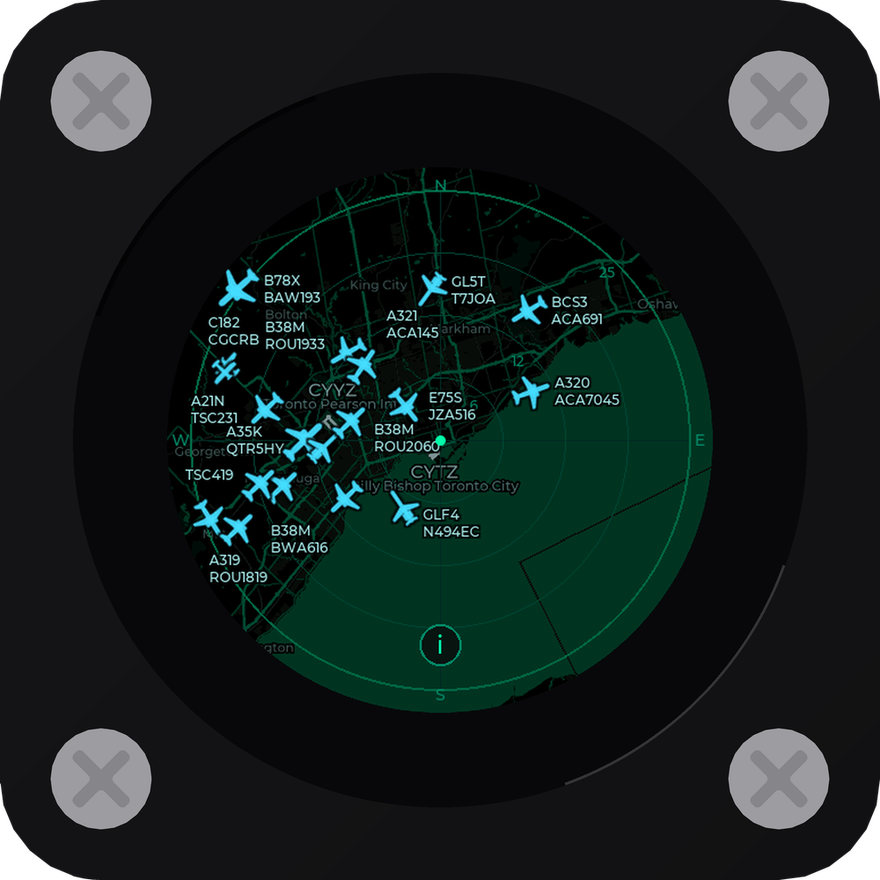
Part 1
Setting it up
You only do this once. Flyover remembers everything, even when it’s unplugged.
- Flyover and its cableBoth are in the box.
- A phone chargerAny USB plug works. A spare phone charger is perfect.
- Your phone and Wi-Fi passwordYour Wi-Fi must be 2.4 GHz. Most home Wi-Fi is.
-
Plug it in
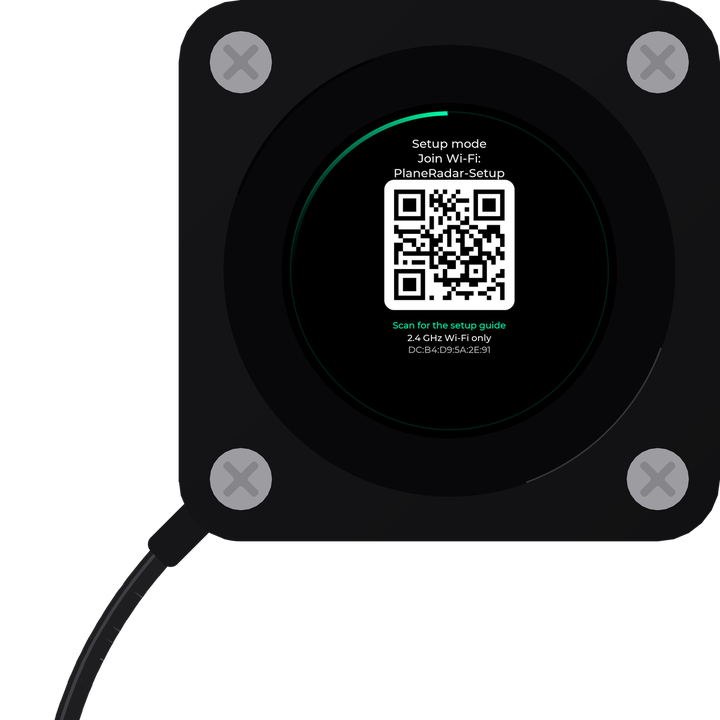
Lift off the faceplate; magnets hold it on. Push the small end of the cable into the socket in the lower-left corner, then put the faceplate back. Plug the other end into the charger, and the charger into the wall.
After a few seconds the screen lights up and says Setup mode.
-
Join Flyover’s Wi-Fi
On your phone, open Settings and tap Wi-Fi. In the list, tap PlaneRadar-Setup.
There’s no password. Your phone may warn that this network has no internet. That’s expected, so stay connected.
-
Fill in the page that opens
A setup page opens on your phone by itself. On it:
- 1Tap your home Wi-FiIt’s in the list at the top.
- 2Type your Wi-Fi passwordCapital letters matter.
- 3Tap Use my locationAllow it if your phone asks. It fills in the two numbers that tell Flyover where your home is.
- 4Tap SaveIt’s at the bottom of the page.
No page? Stay on the PlaneRadar-Setup Wi-Fi, open your web browser, type 192.168.4.1 where you’d type a web address, and go.
Use my location didn’t work? Tap Pick on map instead, or find the numbers here. -
That’s it
While Flyover joins your Wi-Fi, the screen says Connecting to and your Wi-Fi’s name. This can take up to a minute. Then the planes near you appear, and your phone goes back to your own Wi-Fi by itself.
From now on, just plug it in and it starts on its own.
The screen says “Could not connect”? Flyover couldn’t join your Wi-Fi, most often because the password was mistyped. Join PlaneRadar-Setup on your phone again and re-enter the password, as in step 3. Your Wi-Fi must be 2.4 GHz.
The screen says “Set your location to finish setup”? Flyover joined your Wi-Fi but didn’t get your location. Join PlaneRadar-Setup on your phone again and fill in the location, as in step 3.
Finding your location by hand
If Use my location doesn’t work, search for your address below or tap your home on the map. Then type the two numbers into the setup page exactly as shown, including the minus sign if there is one.
Tap the map to drop a pin, or drag the pin to your roof.
Latitude–
Longitude–
In North and South America the longitude is a negative number (it starts with a minus sign). The map puts it in for you.
Part 2
Reading the radar
Flyover is a map of the sky around your home, seen from above, with north at the top.
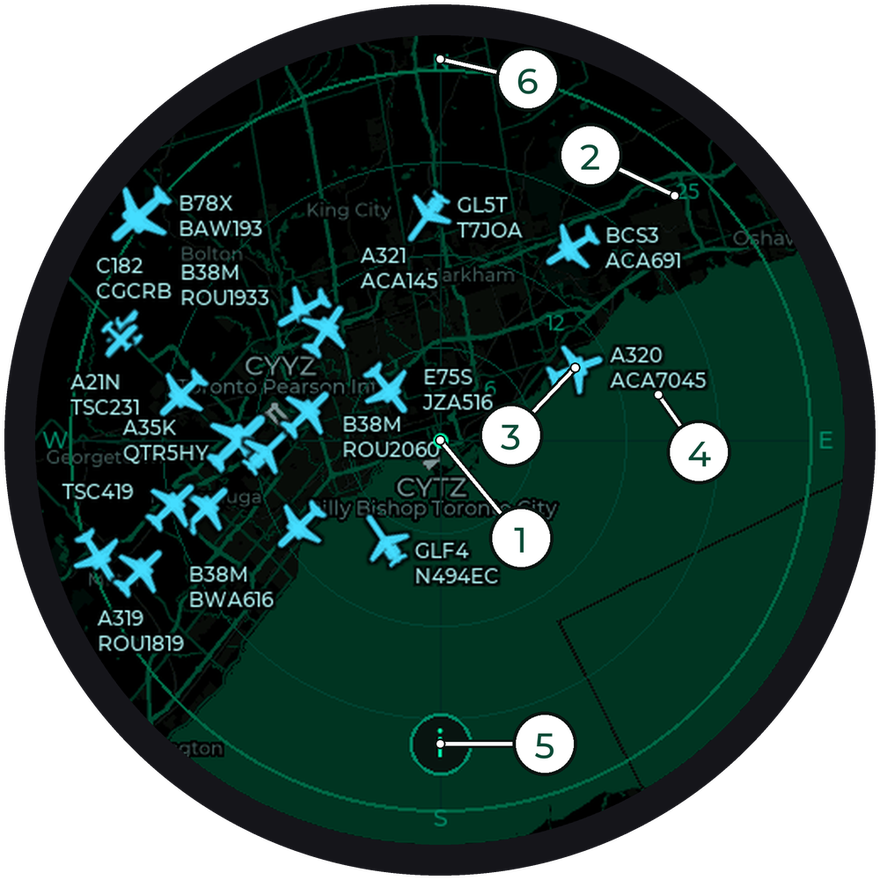
- 1Your homeThe dot in the middle is the location you gave during setup.
- 2DistanceThe rings show how far away a plane is. The numbers are nautical miles (a nautical mile is a little longer than a mile). The outer ring is 25 miles out unless you change it.
- 3A planeEach shape is a plane, pointing the way it’s flying. Bigger planes get bigger shapes.
- 4Its labelThe top line is the type of plane (A320 is an Airbus A320). The bottom line is the flight, as pilots say it on the radio: ACA7045 is Air Canada 7045.
- 5SettingsTap this round button to open the settings.
- 6NorthNorth is at the top, like on a map. Roads and water are drawn underneath the planes.
A few things you might see
A red plane has told air traffic control it has a problem. It’s usually something small and dealt with quietly, and there’s nothing you need to do.
A number in a circle means several planes are bunched together, often at an airport. Tap it to see them in a list.
A plane without a label is sharing a crowded patch of sky. Flyover leaves some labels off so the rest stay readable. Tap the plane to see who it is.
Tap a plane
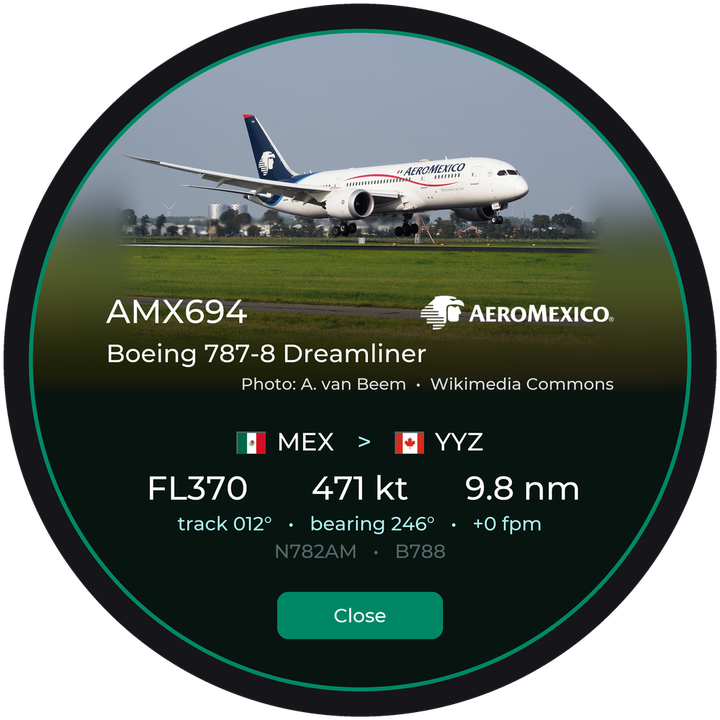
Tap any plane to see more about it: a photo of that kind of plane, the airline, where it’s flying from and to, how high and fast it’s going, and how far it is from you.
Tap Close to go back to the radar.
Flyover only shows where a flight is going when it’s sure. If the route can’t be confirmed it’s left off rather than guessed.
Part 3
Settings
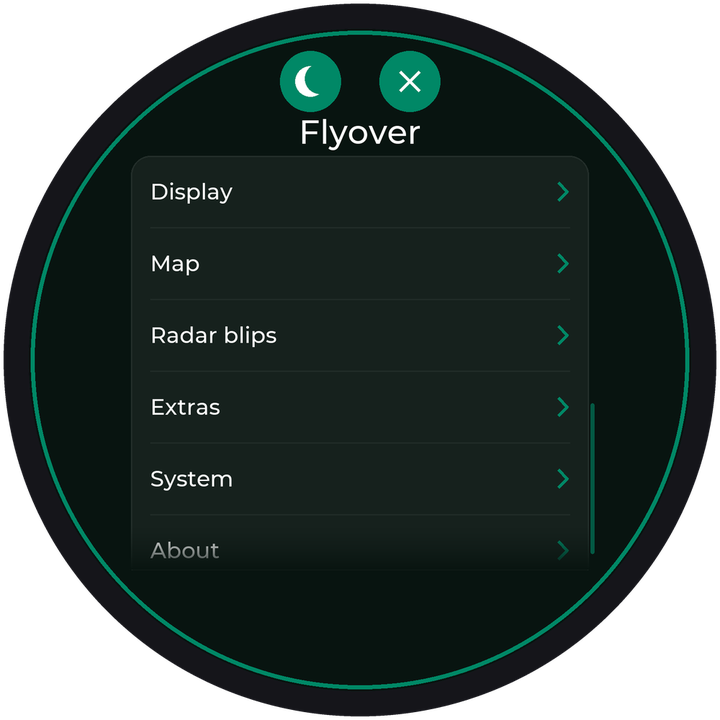
Tap the round button at the bottom of the radar. Slide the page up and down with your finger to see everything. The X at the top closes it.
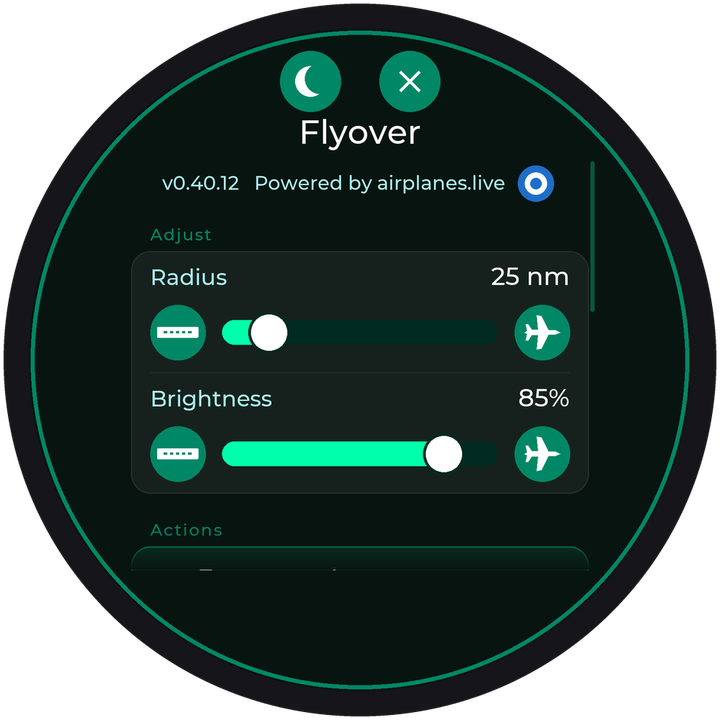
- Radius
- How far out Flyover looks, from 5 to 150 nautical miles. Drag the slider, or tap the runway button for closer and the plane button for further. 25 suits most homes.
- Brightness
- How bright the screen is.
- Focus mode
- One plane at a time, up close. See Focus mode below.
- Track a flight
- Follow a flight you’re waiting for, anywhere in the world. See Following a flight.
- Change Location
- Move your home point, if you move house or want it more exact, without setting up again.
- Display
- The colours (Theme), High contrast for a light screen with dark markings, Holiday themes on special days, the clock and photos in Focus mode, and Flip 180° if Flyover sits upside down.
- Map
- The map under the planes: turn it on or off, choose its style (see below), make it brighter or dimmer, and show or hide airports and the glow of city streets.
- Radar blips
- How planes are drawn: their shape and size, what their labels say (type, flight, height), Tidy labels for busy skies, Hide ground for planes parked at airports, and a colour for military aircraft.
- Extras
- Show weather for the temperature at your home, Idle sleep to turn the screen off after a while, Radar sweep for an old-style rotating trace, and Show connection info.
- System
- Check for updates, the beta channel for early new features, and Reconfigure Wi-Fi for a new router or a new home. That last one asks first, then starts setup again. It forgets only your Wi-Fi and your location; all your other settings stay.
- About
- Flyover’s version and connection details, which are handy if you ever message us, plus where its information comes from.
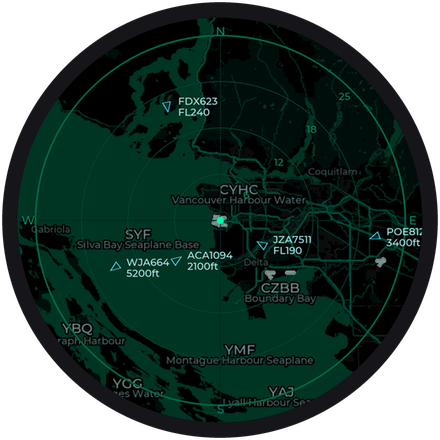
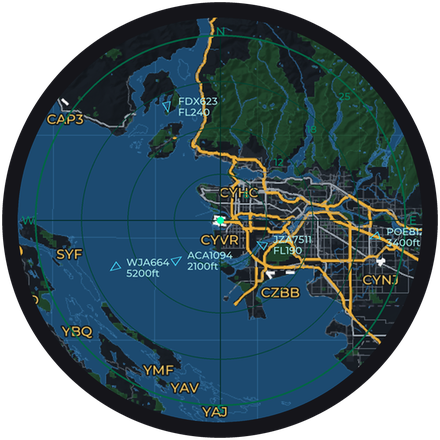
Map styles
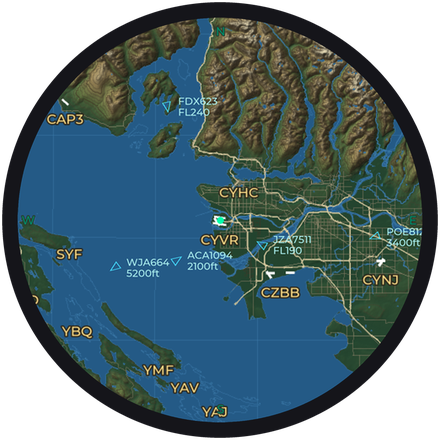
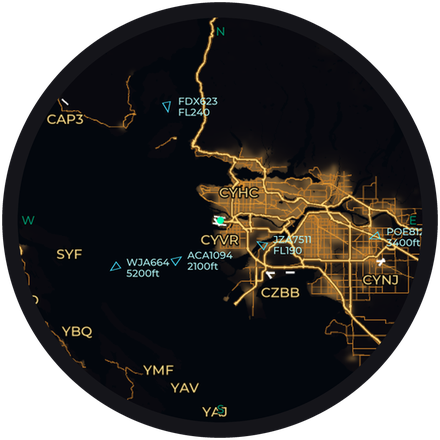
Choose one on the Map page, under Map style. Dynamic switches between Relief by day and Night after dark.
Focus mode
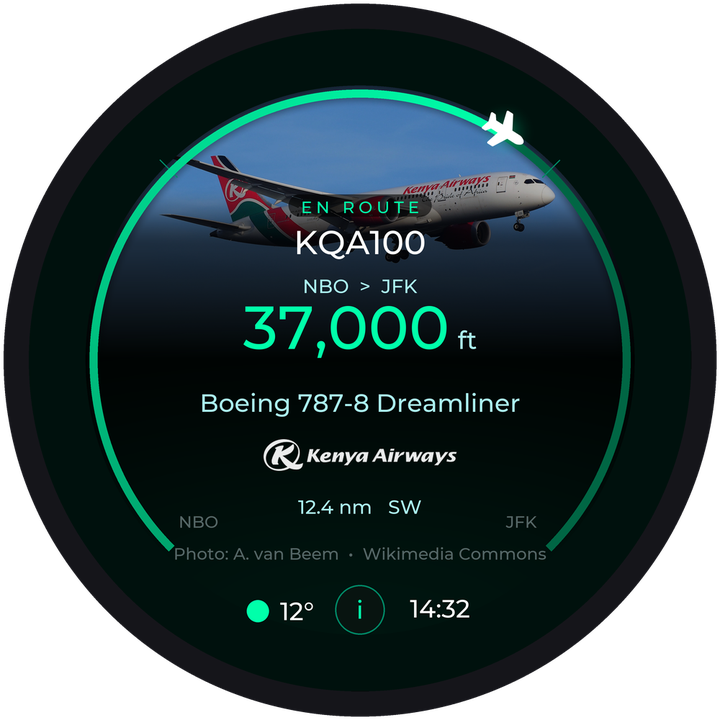
Focus mode fills the screen with just one plane: the one nearest to being right overhead. It shows the plane’s height, type, airline and a photo, and the arc around the edge shows how close it is getting.
Open the settings and tap Focus mode. To go back, tap the round button at the bottom and choose Back to the radar.
Sleep
Tap the moon at the top of the settings to turn the screen off. Double-tap the screen to wake it. To have Flyover go to sleep by itself when nobody’s touched it for a while, set Idle sleep on the Extras page.
Part 4
Following a flight
Waiting for someone to land? Flyover can follow their flight the whole way, even from the other side of the world.
Open the settings and tap Track a flight. Type the flight number from the ticket, such as AC942 or UA392, and pick the flight from the list that appears.
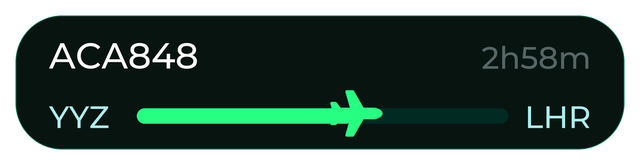
A small panel then sits at the top of the radar with the two airports, a bar showing how far along the flight is, and the time left. When the plane comes within range it’s drawn in its own colour.
Tap the panel to follow a different flight or to stop. The flight needs to be in the air. If it hasn’t taken off yet, try again once it has.
Part 5
Updates
Flyover gets new features and fixes over Wi-Fi. Nothing changes until you say so.
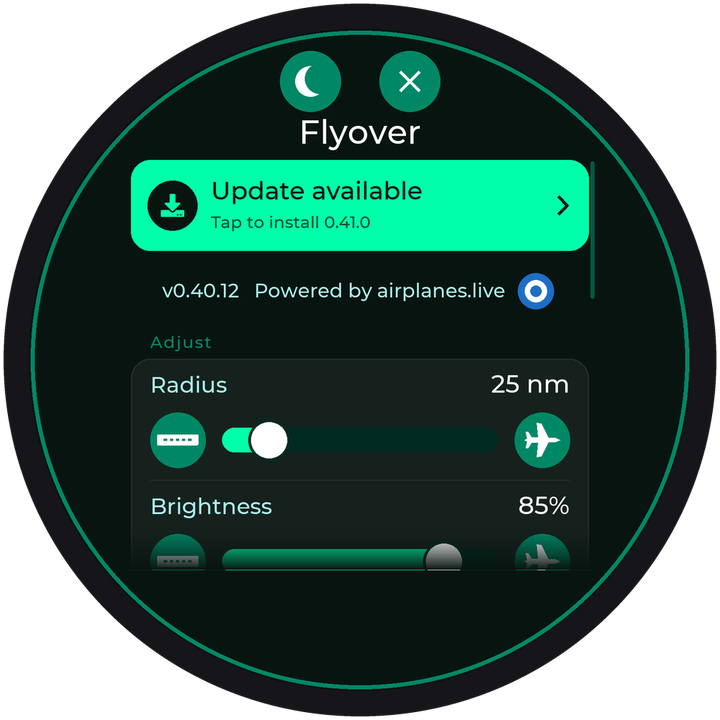
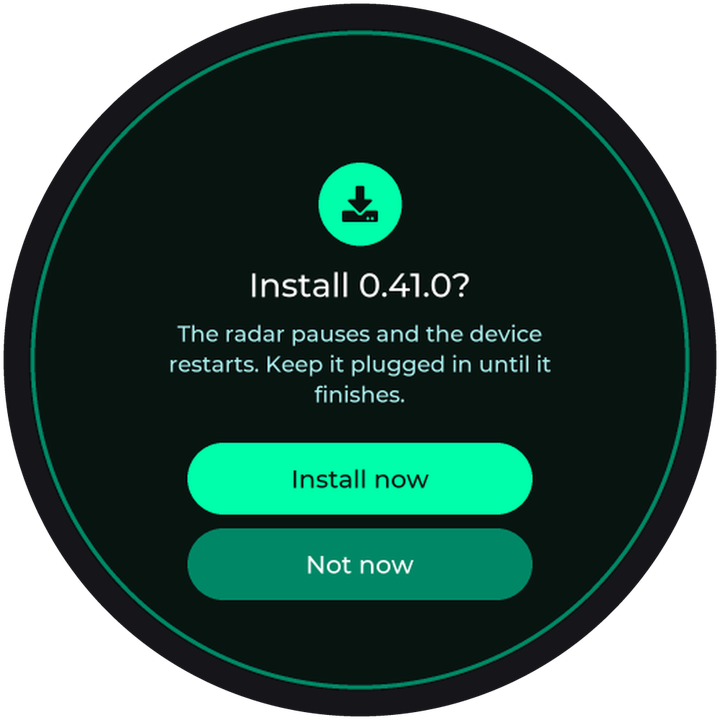
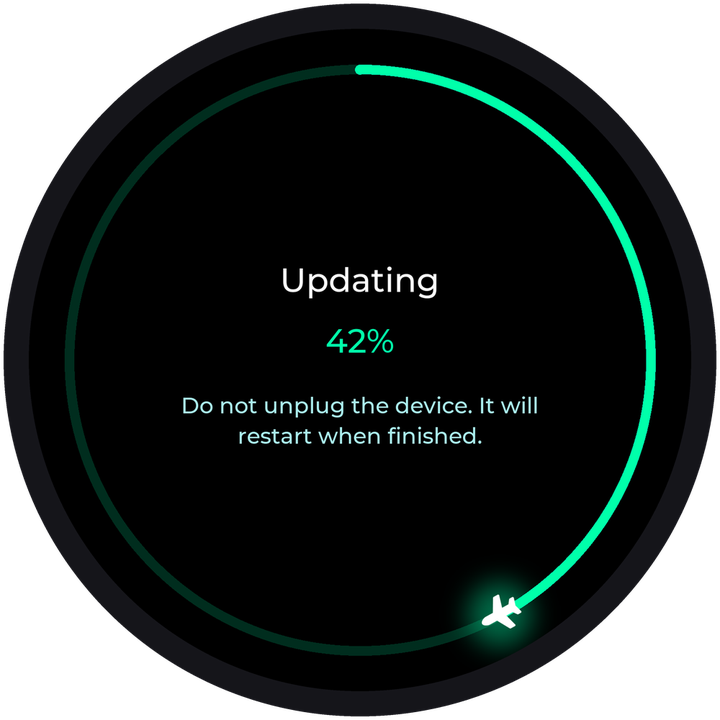
When an update is ready, a small dot appears on the settings button. An update takes a minute or two. Keep Flyover plugged in until it restarts. (If it does get unplugged, no harm done: it will offer the update again later.)
If now isn’t a good time, tap Not now. The Update available bar stays in the settings until you’re ready.
Part 6
If something’s not right
Flyover looks after itself: it reconnects after Wi-Fi or internet trouble and keeps showing the last planes it saw in the meantime. Most things clear up on their own. If not, look for your problem below.
The screen is dark
It’s probably asleep: double-tap the screen. If nothing happens, check the cable is pushed all the way in at both ends and the charger is plugged in.
I can’t find PlaneRadar-Setup on my phone
Flyover only offers it when it hasn’t been set up, or when it can’t reach your Wi-Fi. Unplug it, wait five seconds, plug it back in, and look again after a minute.
The setup page didn’t open
Stay connected to PlaneRadar-Setup, open your web browser and go to 192.168.4.1.
It won’t join my Wi-Fi
Check the password: capital letters matter. Flyover needs 2.4 GHz Wi-Fi, so if your router shows two names, pick the one without “5G” in it. For setup, it helps to bring Flyover closer to the router.
There are no planes
Quiet skies happen, especially late at night. Try a bigger Radius in settings. If Flyover never shows a single plane, your home location may be wrong: see the next question.
The planes are in the wrong place
Your home location is off. Open the settings, tap Change Location and enter it again. The map above gives you the numbers.
I’ve moved house or changed my Wi-Fi
For a new Wi-Fi, open the settings, go to System, tap Reconfigure Wi-Fi and then Reconfigure, and follow the setup steps again. Your other settings stay as they were. If only your address changed, Change Location is quicker.
There’s a message on the screen
Shorter notes like “updating feed” only appear if you’ve turned on Show connection info in Extras.
Anything else
Unplug Flyover for five seconds and plug it back in. That fixes most things. Still stuck? Message us.
Good to know
Need a hand?
Message us on Etsy any time. A photo of the screen or a few words about what it’s doing is plenty. While Flyover is online we can usually check it from our end.
Message us on Etsy